
How to Create AI Motion Graphics: A few years ago, a 60-second motion graphic meant opening After Effects, building keyframes one by one, and losing a whole weekend to a single video. Today you can do the same job with two AI tools: Claude to think and write the prompts and Google Flow to generate the clips. No timelines, no plugins, no steep learning curve.
This guide walks you through the exact process, step by step.
Can You Make Motion Graphics Without After Effects?
Yes, and it is easier than most people think. After Effects is powerful, but it asks for weeks of practice before your work starts looking good. You need to understand layers, keyframes, easing curves, expressions, and render settings.
AI flips that around. Instead of building every movement by hand, you describe what you want and the AI generates it. Your job shifts from operator to director: you pick the style, write the idea, and approve the result.
How AI Saves You Time
- No manual keyframing. One prompt can replace hours of animation work.
- No software learning curve. If you can write a clear sentence, you can start today.
- Faster revisions. Want a different color or camera move? Change one line in the prompt and regenerate.
- One style, many videos. Once your master prompt is ready, every new script follows the same look automatically.
How to Create AI Motion Graphics: What You Need Before You Start
- A Claude account
- Access to Google Flow
- A free Pinterest account for reference videos
- ChatGPT (optional, only for writing a quick test script)
Step 1: Choose Your Motion Graphic Style
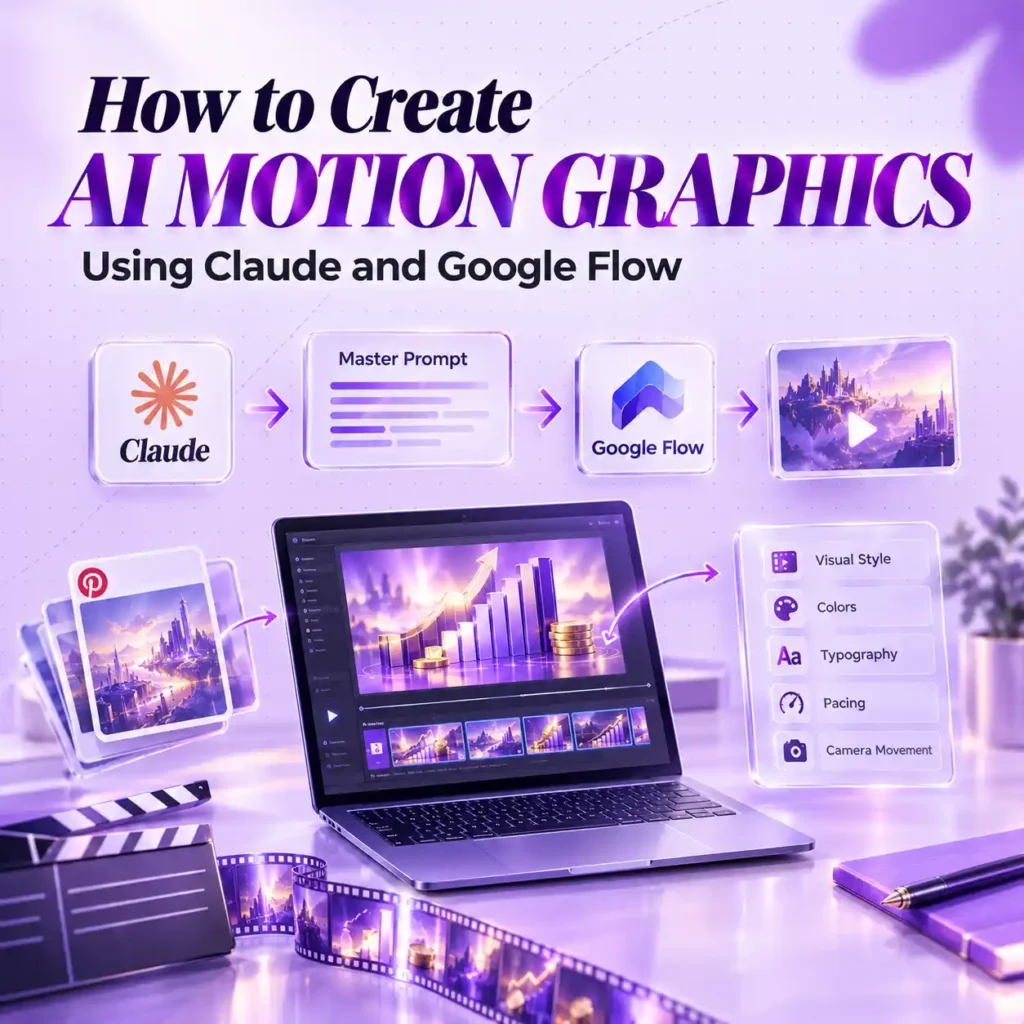
You can make motion graphics in any niche: finance, motivation, education, tech, or anything else. Before you write a single prompt, decide on the look you want. The easiest way is to find a reference video and get inspired by it.
How to Find Motion Graphic Reference Videos on Pinterest
- Open Pinterest and search for your theme, for example, “finance motion graphics” or “motivation motion graphics”.
- Scroll through the results and note what catches your eye: colours, text style, how things move.
- Open the video you like the most.
- Copy its link and download the video.
In this guide, I am using finance as the example, but the process is identical for any topic. Pick whatever matches your channel.
Step 2: Reverse Engineer the Style With Claude
Now you have a reference video. Instead of guessing how it was made, let Claude study it.
You are a motion graphics director and prompt engineer analyzing an uploaded video (motion
graphics/animation/product demo/SaaS explainer): first, extract and inspect frames across its
entire duration (not just the opening seconds) and produce a professional shot-by-shot
breakdown detailed enough for another creator to rebuild the video without seeing the original,
covering for each scene/beat the timestamp range, composition and camera (framing, aspect
ratio, movement, depth of field, focal point), every subject/object/icon/illustration/3D element
with its shape, style, position and size, exact text and typography (wording, font weight/style,
size hierarchy, color, animation), the color palette (backgrounds, accents, gradients, approximate
hex values), lighting/shadow/texture details, precise icon and UI element description, motion and
transition technique into the next beat, and audio mood/SFX/voiceover, plus a top-line summary
of total duration, resolution, frame rate, overall visual style in one line, pacing, and any recurring
motif; then convert that full analysis into a single ready-to-paste Google Omni Flash generation
prompt that recreates the style, pacing, and structure (not copyrighted specifics) using a dense
one-sentence style line covering mood/lighting/color grading/camera/finish quality, technical
specs (resolution, aspect ratio, fps, and duration compressed proportionally to Omni Flash's
native 10-second output if the source is longer), a beat-by-beat generation timeline with exact
colors, typography, and icon/shape geometry, a locked typography spec line, a sound design line
timed to the visual beats, and a final-frame spec describing the last held frame, all formatted as
one direct, unambiguous copy-paste generation block with no questions or commentary — and
before finalizing, apply any custom changes specified (brand name/logo, color palette override,
text/copy override, duration override, tone/style shift, or elements to add/remove), keeping
anything left unspecified faithful to the original video's analysis.
How to Extract the Visual DNA of a Video
- Open Claude.
- Upload your reference video.
- Ask Claude to analyse it and write a reverse prompt that could recreate the same style.
Claude breaks the video down into its visual DNA:
- Animation style: how elements enter, move and exit
- Colours: the palette and how it is used
- Typography: font style, size and text behaviour
- Pacing: how fast scenes change
- Camera movement: zooms, pans and transitions
You get a detailed reverse prompt that describes the video better than most people could do manually.
Step 3: Turn the Reverse Prompt Into a Universal Master Prompt
The reverse prompt only describes one video. You want something reusable for every script you write. So send Claude this follow-up:
Transform the prompt above into a universal master prompt that I can use with any text or script so it automatically breaks text into visual beats with the same style.
Why a Master Prompt Matters
This is the step that saves you the most time. The master prompt locks in your style once. After that, any script you paste in gets split into visual beats and written in the same look, so your videos stay consistent without extra effort. Save it somewhere safe, because you will use it again and again.
Step 4: Test the Master Prompt With Your Own Script
Time to see it work.
Write a One-Minute Script
Use ChatGPT to generate a one-minute story or explainer on your topic. I am using a short finance story. Use your own script if you already have one.
Break the Script Into Scenes With Claude
Open a new Claude chat, paste your master prompt, then paste the script below it. Claude splits the script into short visual scenes and writes a style-matched prompt for each one. Read through them and make quick edits if any scene feels off.
Step 5: Generate AI Motion Graphic Clips in Google Flow
Now take the scene prompts from Claude over to Google Flow.
Select the Right Model
In Google Flow, choose the Omni Flash model.
Two Ways to Generate Your Clips
- One by one: paste each prompt, generate the clip, and move to the next. This gives you full control over every scene.
- Agent Mode: paste all the prompts at once and let Flow generate every clip automatically. This is the fastest option when you have many scenes.
Tips for Better AI Motion Graphics
- Keep each scene short and focused on a single idea.
- Reuse the same master prompt so the colors and typography stay consistent.
- If a clip looks wrong, edit only that scene’s prompt instead of redoing everything.
- Pick a reference video with a clear, simple style. Overly busy references are harder for AI to reproduce.
Final Step: Edit and Publish
Once all clips are ready, download them and drop them into any basic video editor. Add your voiceover or music, trim where needed, and export. You now have a complete motion graphic video without opening After Effects once.
Conclusion
The workflow is simple: find a reference, let Claude reverse engineer it, turn that into a master prompt, split your script into scenes, and generate the clips in Google Flow. Set it up once and every future video becomes faster than the last. Start with one test script today and see how far a single prompt can take you.